Best Sodium Settings for Low End PC: Smooth Minecraft on Weak Hardware
Minecraft can stutter on a weak PC even at low settings. Sodium fixes much of that. It is a free performance mod that rewrites how Minecraft renders the world, and it works best on the exact hardware that struggles most: old laptops, integrated graphics, and low end desktops.
This guide covers what Sodium is, how to install it in four steps, and the best Sodium settings for a low end PC. Every setting below comes from Sodium’s own documentation and the mod’s official pages. There are no FPS promises here, because results vary by hardware, and Sodium says so itself.
What Is Sodium
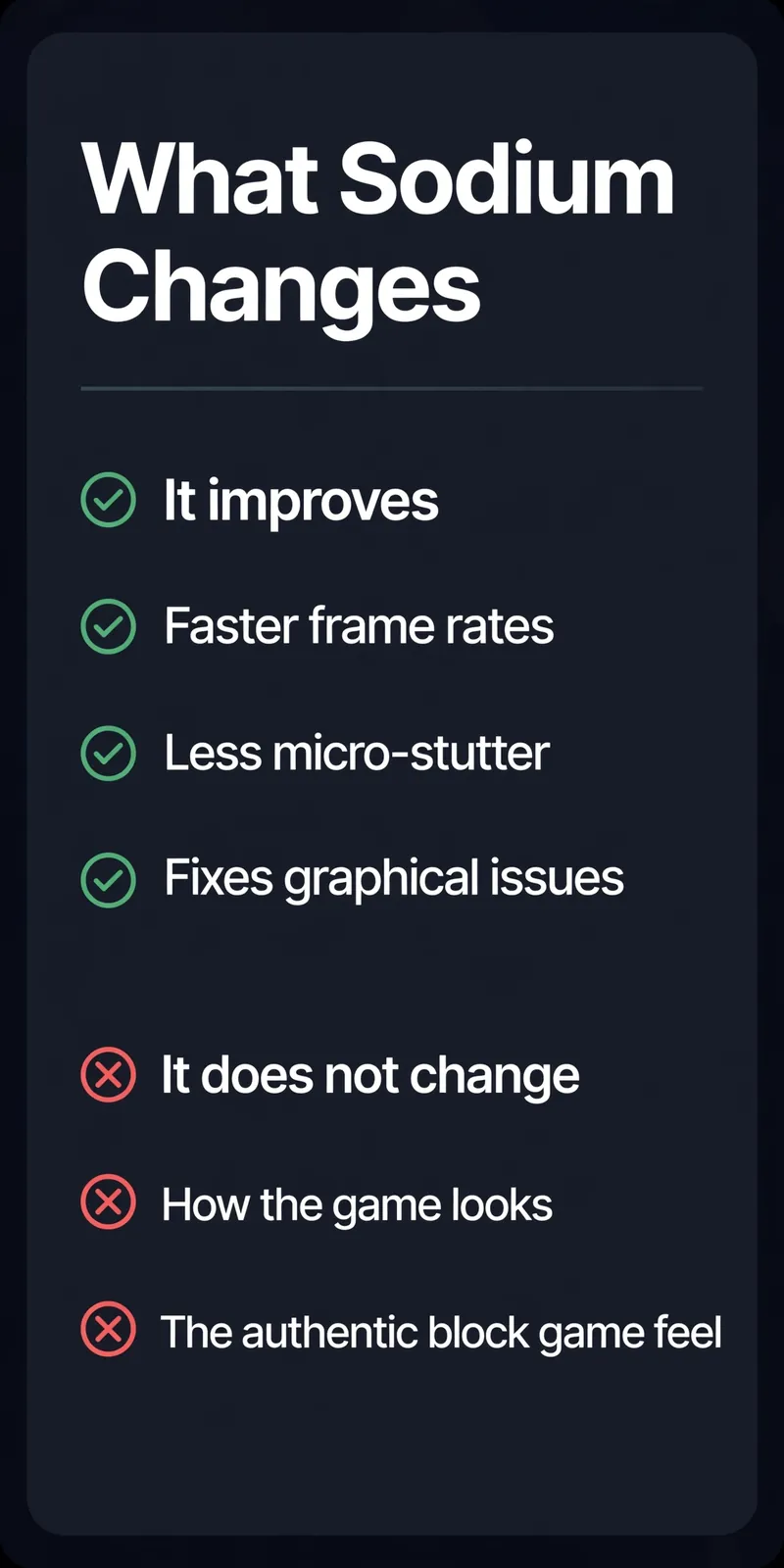
Sodium is a free, open source optimization mod for the Minecraft Java Edition client. It replaces the game’s rendering code with a faster version that improves frame rates and reduces micro-stutter, and it also fixes many graphical issues. That description comes straight from Sodium’s official Modrinth page.
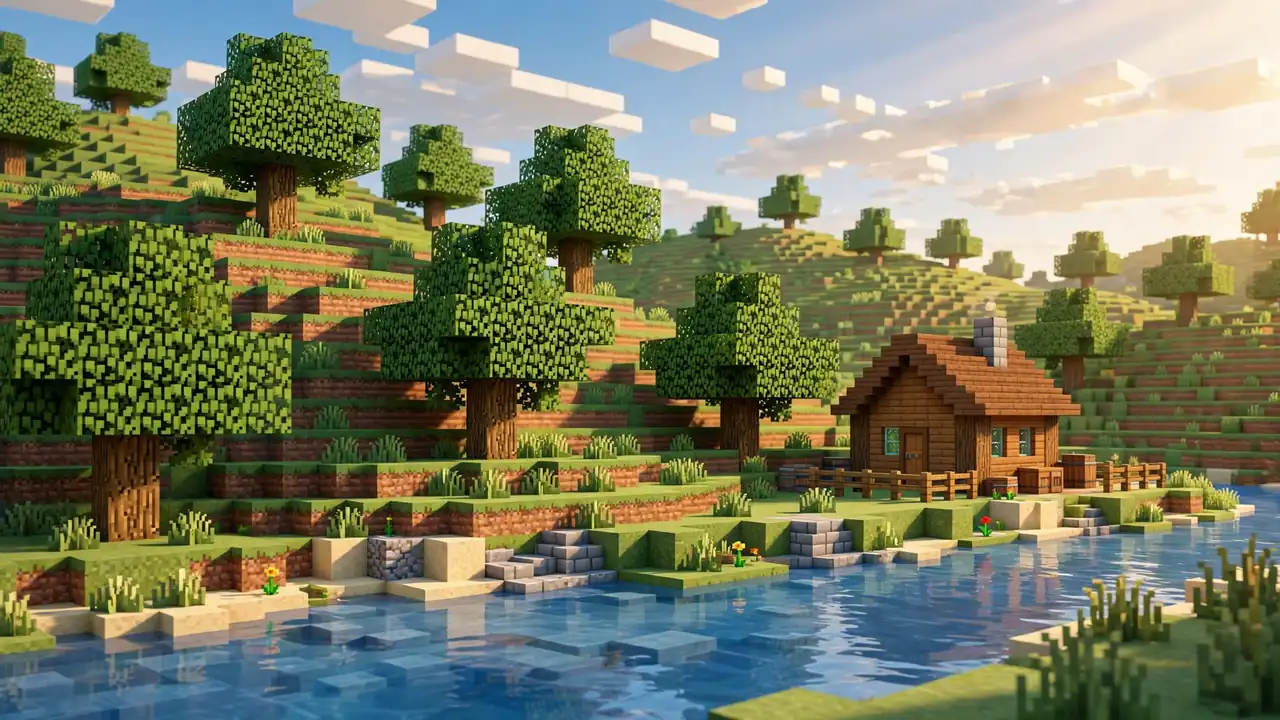
Sodium only changes rendering. It does not change how the game looks, and it keeps the authentic block game feel. That matters, because most performance mods trade visuals for speed. Sodium keeps the look and still runs smoother.
Sodium runs on Fabric, Quilt, and NeoForge. Fabric is the recommended loader, because it is the simplest and most lightweight option, according to the official installation guide.
Here is what Sodium does for your game:
- Rewrites Minecraft’s rendering code for faster frame rates
- Reduces micro-stutter while chunks load
- Fixes many graphical issues in vanilla Minecraft
- Keeps the vanilla look, with no visual overhaul
- Works on Fabric, Quilt, and NeoForge, with Fabric recommended
What You Need Before Installing Sodium
Sodium needs two things: a legal copy of Minecraft Java Edition, and a mod loader. It also needs a graphics card with up to date drivers that support OpenGL 4.5 or newer. Sodium’s official page lists Intel HD Graphics 500 series or newer, NVIDIA GeForce 400 series or newer, and AMD Radeon HD 7000 series or newer as supported.
Update your graphics drivers first. Sodium’s own team says out of date drivers cause most crashes, rendering bugs, and performance issues. A driver update is free and takes a few minutes.
Checklist before you start:
- Minecraft Java Edition installed and launched at least once
- Fabric Loader, or another supported loader
- Graphics drivers updated to the latest version
- The correct Sodium file for your Minecraft version, from Modrinth
How to Install Sodium
Installation takes about five minutes. Sodium’s defaults are already tuned, so you do not need to change anything to see a difference. The official guide says Sodium enables all optimizations supported by your system by default.
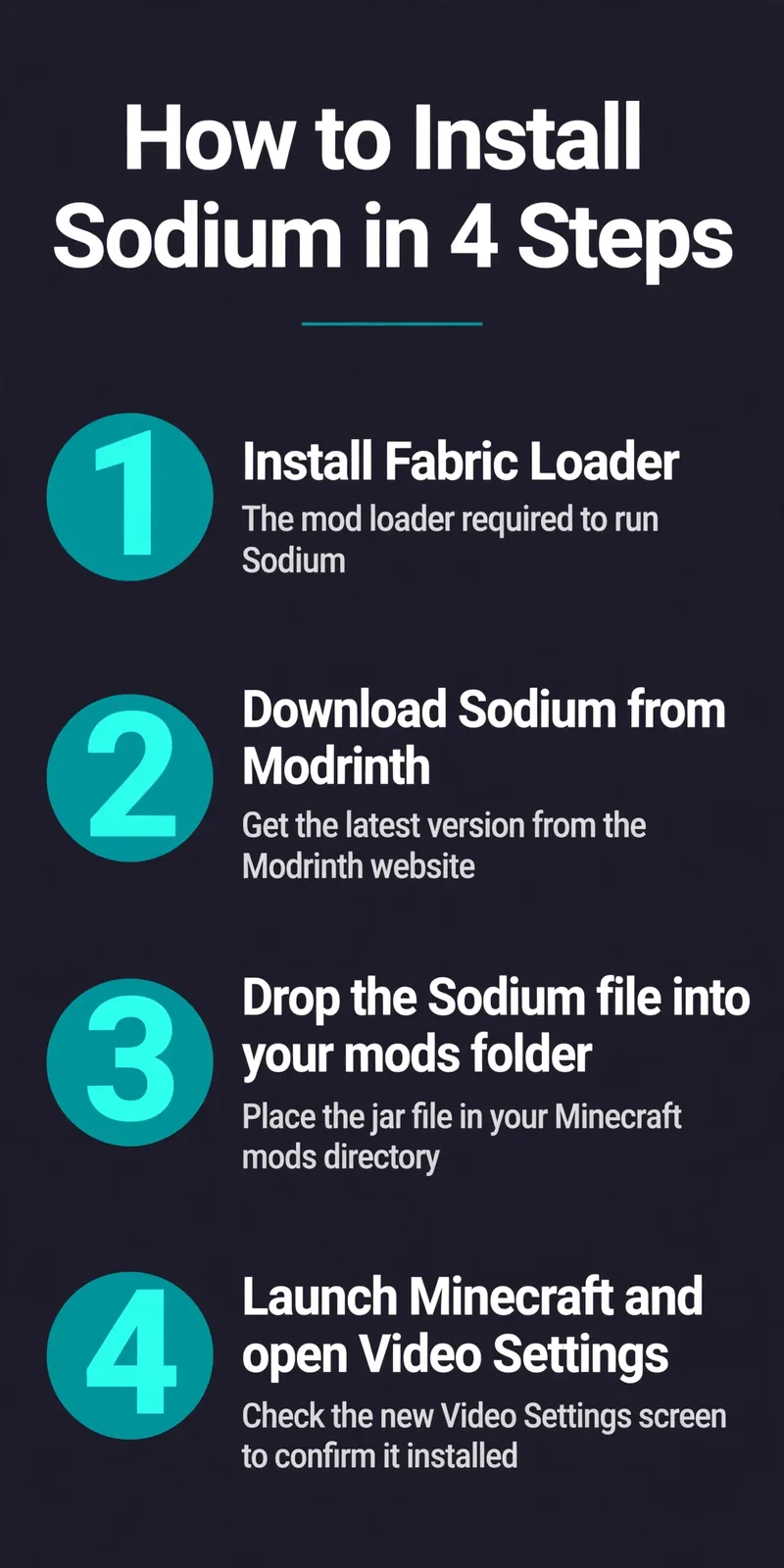
- Install Fabric Loader from fabricmc.net. Run the installer, pick your Minecraft version, and let it create a Fabric profile.
- Download Sodium from Modrinth. Pick the file that matches your Minecraft version.
- Open your Minecraft mods folder and drop the Sodium file into it. On Windows, press Win plus R, type %appdata%\.minecraft, and open the mods folder inside it.
- Launch Minecraft with the Fabric profile. Open Options, then Video Settings. You should see Sodium’s new settings screen, which confirms the mod installed correctly.
If the Video Settings screen looks the same as vanilla, Sodium did not load. Check that the file sits in the mods folder and that you launched the Fabric profile, not the vanilla one.
Best Sodium Settings for a Low End PC
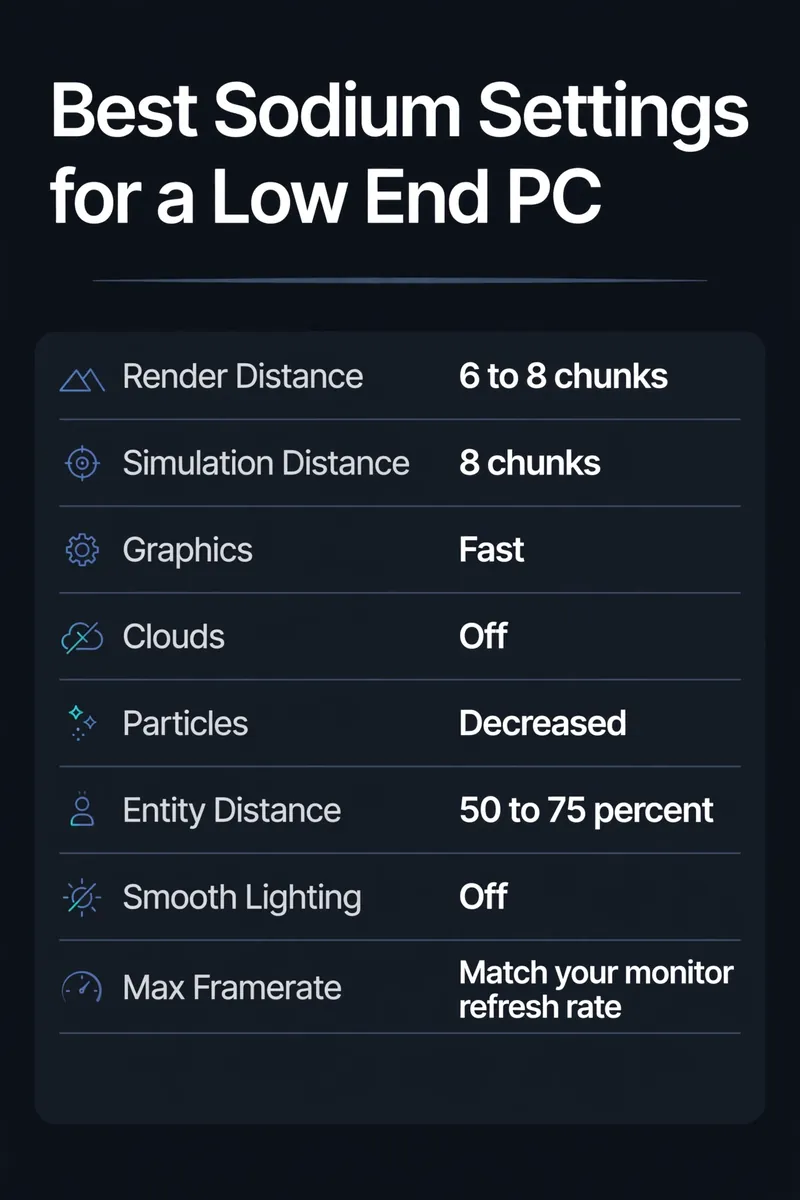
Open Options, then Video Settings, after installing Sodium. Start with the values below, play for a while, then raise one setting at a time if the game feels smooth. Change one thing at a time so you know what helped.
Render Distance and Simulation Distance
Render distance is the single biggest lever on a low end PC. It controls how many chunks the game draws around you. Sodium’s own wiki says low end graphics cards and integrated graphics benefit greatly from decreasing it. The default is 12 chunks. Start at 8, and drop to 6 if the game still stutters.
Simulation distance controls how far away the game simulates mobs, crops, and redstone. Sodium’s wiki says there is little reason to set it above 12, and it should not go below 8. Set it to 8 on a low end PC.
Graphics Quality and Visuals
Set Graphics to Fast. It simplifies leaves and other details and costs almost nothing visually at a glance. Then work through the rest of the Quality tab:
- Clouds: Off. Clouds add draw work for little benefit.
- Particles: Decreased. Fewer particles during combat and around effects.
- Smooth Lighting: Off. It looks nicer, but it costs performance on weak hardware.
- Entity Shadows: Off. Shadows under mobs and players are expensive to render.
- Entity Distance: 50 to 75 percent. Mobs and items stop rendering sooner, which cuts CPU and GPU work.
- Biome Blend: leave at 2. That is Sodium’s default, and its wiki says the blending algorithm performs better and looks better than vanilla’s default of 5. There is no reason to raise it.
- Mipmap Levels: leave at 4x. The wiki says mipmaps have a low performance impact, so leave the default unless you need every last drop of performance.
If a setting name confuses you, our PC graphics settings explained guide defines each one in plain language.
Performance and Advanced Options
In the Performance tab, leave Chunk Update Threads on its default setting. Sodium calculates the thread count from your CPU, and its wiki says to leave the Performance tab alone unless you know exactly what you are doing. The same applies to the Advanced tab: leave it at default in almost every scenario.
For Max Framerate, cap it near your monitor refresh rate. An uncapped frame rate makes your graphics card work harder than it needs to, which hurts laptops most. Sodium’s wiki says that if your display supports adaptive sync, turn VSync off and set the max frame rate 3 to 4 FPS below your refresh rate. Without adaptive sync, turn VSync on for a tear free experience.
Here is the full low end setup in one place:
| Setting | Recommended value | Why it helps |
|---|---|---|
Render Distance | 6 to 8 chunks | Fewer chunks drawn, the biggest single gain |
Simulation Distance | 8 chunks | Less world simulation outside your view |
Graphics | Fast | Simpler leaves and details |
Clouds | Off | Removes cloud rendering work |
Particles | Decreased | Fewer effects to draw |
Smooth Lighting | Off | Cheaper lighting calculation |
Entity Distance | 50 to 75 percent | Mobs render only when close |
Entity Shadows | Off | No shadows under mobs |
Biome Blend | 2 (default) | Sodium default, leave it alone |
Mipmap Levels | 4x (default) | Low impact, leave it alone |
Max Framerate | Match your refresh rate | Stops the GPU working for nothing |
Chunk Update Threads | Default | Sodium sets it from your CPU |
Companion Mods That Help Low End PCs
Sodium only optimizes rendering. For more performance, Sodium’s own page recommends Lithium, which optimizes game logic such as physics and mob behavior, and Phosphor, which replaces the lighting engine on older versions. Both are free and work with Sodium.
Add one mod at a time and test before adding the next. That way, if something breaks, you know which mod caused it.
What to Expect After Installing Sodium
Expect smoother chunk loading, fewer hitches when you turn or explore, and a game that looks the same as vanilla. Sodium’s own page warns that results vary with your exact hardware and software, so treat any FPS figure you see online as a report from someone else’s PC, not a promise for yours.
If the game still stutters after these settings, the cause is often outside Sodium: an outdated driver, a full hard drive, or too many background apps. Updating drivers is the first fix to try, since Sodium’s team links most crashes and rendering bugs to old drivers. If stutter continues in other games too, our guide to fixing game stuttering covers the wider causes.
Troubleshooting Common Sodium Problems
- Game crashes on launch: update your graphics drivers, then check that your Sodium file matches your Minecraft version.
- Sodium does not appear in Video Settings: you launched the vanilla profile instead of Fabric, or the file is not in the mods folder.
- Black or broken textures: update drivers first, then remove other rendering mods one at a time to find a conflict.
- Still slow after install: drop render distance to 6, close background apps, and check that your laptop is plugged in and not in power saving mode.
Sodium is the rare mod that asks for five minutes and gives back a smoother game with no visual trade off. Install it, use the settings above, and raise one setting at a time until you find the balance your PC handles. For the same ideas applied to every PC game, see our best PC settings for maximum FPS.