Best Controller Settings for Battlefield 6: Aim, Sensitivity, and Deadzone Setup
Battlefield 6 gives controller players a deep settings menu, and the defaults are only a starting point. Sensitivity, aim assist, deadzones, and response curves all change how your aim feels, and small changes make a real difference in a gunfight.
This guide collects the settings that published guides and community consensus agree on. Every value below comes from a named source, and where guides disagree, the guide says so. Treat these numbers as a tested starting point, then tune one setting at a time until the aim feels like yours.
Quick Start: The Settings to Punch In First
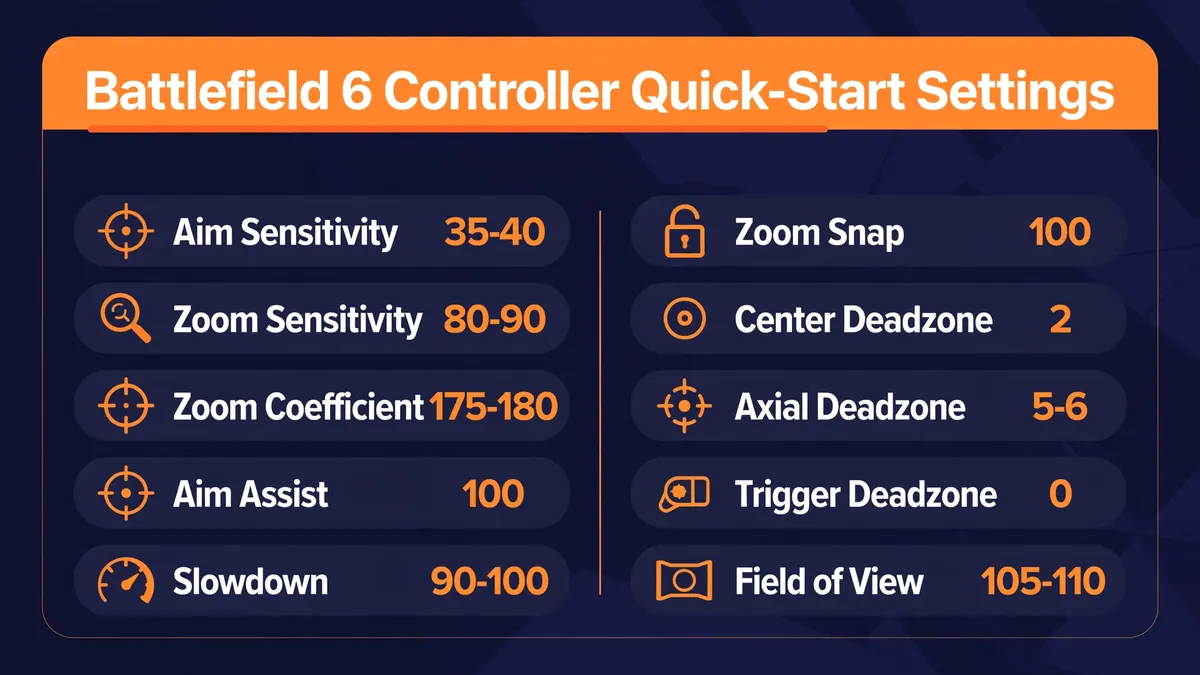
If you want to play now and fine tune later, enter these values first. They are the consensus picks across the major guides, and they work for most players on both PlayStation and Xbox controllers.
| Setting | Recommended value | Where to find it |
|---|---|---|
| Infantry Aim Sensitivity | 35-40 | Aim settings |
| Infantry Zoom Aim Sensitivity | 80-90 | Zoom settings |
| Zoom Sensitivity Coefficient | 175-180 | Aim settings |
| Field of View | 105-110 | Aim settings |
| Infantry Aim Assist | 100 | Aim settings |
| Aim Assist Slowdown | 90-100 | Aim settings |
| Aim Assist Zoom Snap | 100 | Aim settings |
| Soldier Aim Input Curve | BF1 or BF4 | Aim settings |
| Center Deadzone (both sticks) | 2 | Controller Tuning |
| Axial Deadzone (both sticks) | 5-6 | Controller Tuning |
| Trigger Deadzone (LT/RT) | 0 | Controller Tuning |
| Uniform Infantry Aiming | On | Aim settings |
| Controller Vibration | Off | Controller Tuning |
The menu path is Options, then Controller, then Control Settings, then Infantry. Controller Tuning sits in the Other section at the bottom of the Control Schemes menu. Switchblade Gaming verified these values against Season 4 patch 1.4.1.0, and notes that aim assist tuning has not changed since the November 18, 2025 revert.
Sensitivity: Finding Your Aim Speed
Sensitivity decides how far your crosshair moves for a given stick push. Too low and you cannot turn fast enough to track a flanking enemy. Too high and your aim overshoots every small correction.
Most guides land on the same range for on-foot play:
- Infantry Aim Sensitivity 35 to 40. This is the consensus range from Insider Gaming, Switchblade Gaming, and Nerdschalk. It is fast enough to react in close quarters and slow enough to hold a lane at mid range.
- Infantry Aim Sensitivity 45. GameSpot and Dot Esports pick 45 as their baseline. If 35 to 40 feels sluggish when you turn, try 45 before you touch anything else.
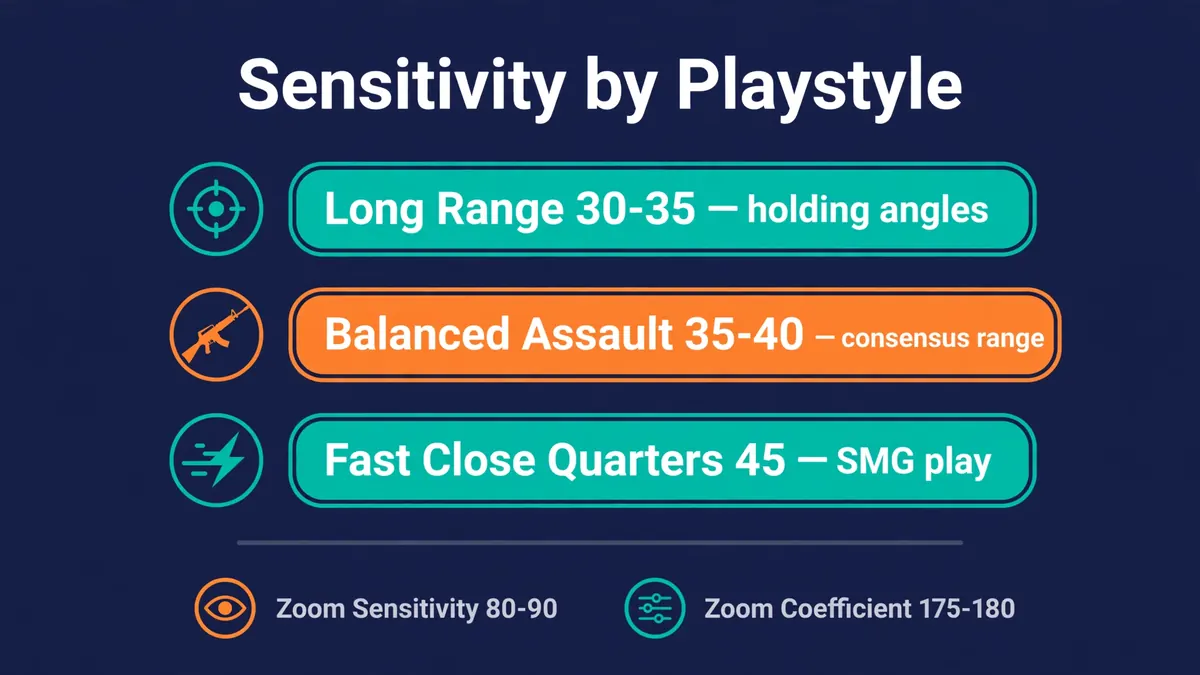
- Infantry Zoom Aim Sensitivity 80 to 90. This is your sensitivity while aiming down sights, measured as a percentage of your hipfire sensitivity. Insider Gaming lists 80 to 90, GameSpot uses 90, and Dot Esports uses 86.
- Zoom Sensitivity Coefficient 175 to 180. This keeps your zoomed sensitivity consistent with your hipfire speed across different magnifications. The exact value 178 appears in both the GameSpot and Dot Esports guides.
- Field of View 105 to 110. A wider field of view shows more of your surroundings, which matters in Battlefield 6 large maps. GameSpot goes up to 115, but 105 to 110 is the common range and avoids the stretched edges a very wide view can cause.
Pick a playstyle before you pick a number:
- Long range and holding angles: stay at the low end, around 30 to 35, and let aim assist do the fine work.
- Balanced assault play: use 35 to 40, the consensus range, and adjust in steps of 2 or 3.
- Fast close-quarters play with SMGs: try 45, the GameSpot and Dot Esports baseline, and drop back down if your aim starts overshooting.
Two related settings shape how sensitivity feels. Vertical Aim Ratio, set to 55 to 60, slows vertical look slightly compared to horizontal look, which steadies recoil control. Uniform Infantry Aiming should stay On, so your sensitivity stays consistent when you switch weapons and zoom levels. If you play on PC, our best PC settings for maximum FPS guide covers the graphics side of smooth aiming.
Aim Assist: What Each Setting Does
Aim assist is the setting new controller players ask about most, and Battlefield 6 splits it into three separate controls. Every major guide agrees on the headline value: Infantry Aim Assist at 100. The detail is in what the other two sliders do.
- Infantry Aim Assist 100. This is how strongly your crosshair pulls toward a target in the outer zone of your reticle. Every guide checked, including Insider Gaming, GameSpot, Dot Esports, Switchblade Gaming, and Nerdschalk, sets this to 100. There is no reason to run it lower.
- Aim Assist Slowdown 90 to 100. Slowdown reduces your stick sensitivity as your crosshair passes near a target, so small corrections stop overshooting. Switchblade Gaming recommends 90 to 100 and suggests dropping to 80 only if you rush with SMGs in tight rooms. Insider Gaming and GameSpot both use 100.
- Aim Assist Zoom Snap 100. Zoom snap pulls your aim toward a target the instant you enter aim down sights. Insider Gaming, GameSpot, and Switchblade Gaming all use 100. Nerdschalk is the outlier at 50, arguing that full snap can feel too aggressive, so if 100 feels grabby when you scope in, try 50 before changing anything else.
One warning from the Switchblade Gaming guide is worth repeating: aim assist tuning has not changed since the November 18, 2025 revert, and the Season 4 patch 1.4.1.0 only added aim assist support while swimming. If an old video tells you aim assist was nerfed or buffed after that date, check it against the current patch before changing your setup.
Deadzones: Kill Drift Without Killing Precision
A deadzone is the small area around a stick neutral position where input is ignored. Set it too high and your aim feels numb on small movements. Set it too low on a worn controller and your crosshair drifts while your thumb is still.
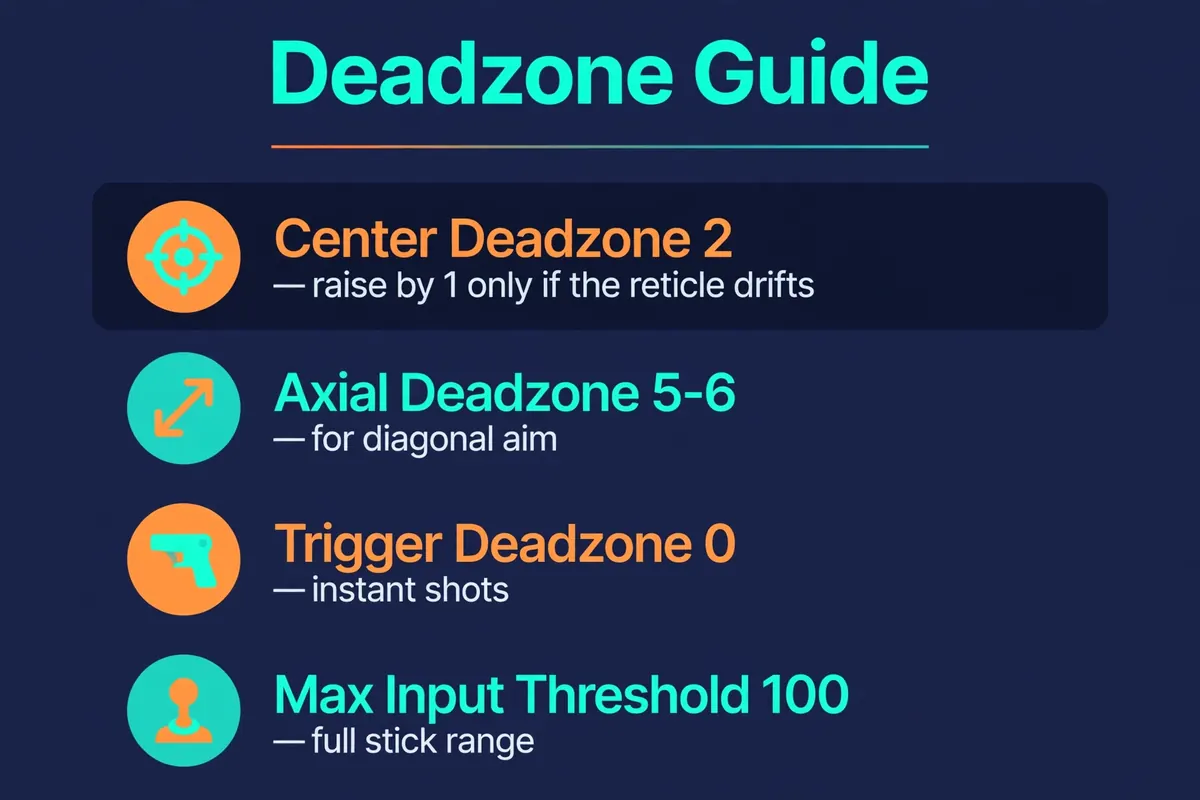
- Center Deadzone 2 for both sticks. This is the deadzone right around neutral. Insider Gaming and Switchblade Gaming both use 2. Raise it by 1 at a time only if your reticle drifts with the stick untouched.
- Axial Deadzone 5 to 6 for both sticks. This governs diagonal input. Switchblade Gaming recommends 5 to 6, Insider Gaming and Dot Esports use 6. If pure diagonal aiming feels locked or notchy, raise this value, not the center deadzone.
- Trigger Deadzone 0 for LT and RT. Triggers do not drift the way sticks do, so there is no reason to pad this. Every guide sets it to 0, so your shot registers the instant you pull.
- Max Input Threshold 100 for both sticks and both triggers. This keeps the full range of stick travel available, so a full push always gives full input.
GameSpot and Nerdschalk use higher deadzones, 5 for center and 10 for axial, as a safe starting point for older or heavily used controllers. That is the right call if your controller already drifts. Start at 2 and 6 on a fresh controller, and only raise the numbers until the drift stops. Every point of deadzone you add is a point of fine aim you lose, so use the lowest value that holds still.
Response Curves and Acceleration
Response curves and acceleration decide how your stick input translates into aim movement. These are the settings that make two players with the same sensitivity feel completely different, so they deserve a careful look.
- Soldier Aim Input Curve: BF1 or BF4. Every guide agrees here. These classic Battlefield curves give a smooth, predictable ramp from small corrections to fast turns. Pick BF1 first, try BF4 if you want a slightly different feel, and leave Standard alone unless you prefer a linear response.
- Infantry Zoom Aim Input Curve: Standard or BF1/BF4. Insider Gaming uses Standard for zoomed aim, while GameSpot uses BF1/BF4. Either works, so keep it on Standard unless your scoped aim feels inconsistent.
- Stick Input Acceleration Presets: BF4, BF3, BFBC. These presets shape how fast your aim accelerates as you push the stick further. Insider Gaming and Dot Esports both list BF4, BF3, and BFBC as the presets to use.
- Aiming Left and Right Acceleration 10 to 15. Insider Gaming recommends 10 to 15, and Dot Esports uses 12. GameSpot lists 50 and Nerdschalk lists 60, which are much faster. Start at 10 to 15. If turning feels slow, raise it in small steps instead of jumping straight to 50, because high acceleration makes small corrections jumpy.
Button Layout: The Best Controller Preset
Battlefield 6 default layout is solid, and most guides keep it with a few targeted changes. The important choices are sprint, zoom, and crouch, because you press them constantly.
- Infantry Sprint: Toggle. GameSpot and Dot Esports both use Toggle, so one press keeps you sprinting until you stop or aim. Hold sprint tires your thumb out in long matches.
- Sprint: L3 or LS. Clicking the left stick to sprint is the default, and it pairs naturally with Toggle.
- Infantry Weapon Zoom: Hold. Hold zoom on LT or L1, so you scope in only while you hold the trigger. GameSpot and Dot Esports both list Hold, and it stops you getting stuck scoped in after a fight ends.
- Zoom: LT or L1. The left trigger is the natural zoom button on both PlayStation and Xbox layouts.
- Steady Scope: Hold. Hold to steady your scope when you need a precise long shot, and release it when you need to move.
- Double Tap Forward to Sprint: Off. Leave this off, so an accidental double tap never breaks your aim stance at the wrong moment.
- Parachute Autodeploy: Skydive and Insertions. This opens your chute automatically when it matters, so you can focus on where to land instead of the button.
If you play on PC with a controller, the same layout applies. For the keyboard and mouse side of the game, check our PC graphics settings explained guide, which covers the settings that pair with these controller values.
Vibration and Triggers
Vibration is a comfort setting, not a performance setting, and most competitive guides turn it off.
- Controller Vibration: Off. GameSpot, Dot Esports, and Nerdschalk all recommend Off, because vibration shakes your aim during sustained fire and adds nothing to accuracy. Insider Gaming keeps it On at 100 intensity with the Immersive mix preset, so if you play for immersion rather than ranked results, that is the setup to use.
- Adaptive Triggers Weapon Fire: 100. On PlayStation 5, this sets trigger resistance while firing. Keep it at 100 if you like the feedback, or lower it if the resistance tires your finger.
- Adaptive Triggers Weapon Zoom: 100. Same idea for the zoom trigger. Match it to your fire setting so both triggers feel consistent.
- Vibration Mix Preset: Immersive. Only matters if you leave vibration on. Immersive is the preset every guide that keeps vibration uses.
The gyro and flick look settings in Controller Tuning only matter if you use motion controls. GameSpot notes you can leave them alone unless you actively use those features, and Dot Esports enables gyro aiming only for players who already play that way.
Vehicle and Zoom Sensitivity
Infantry settings are only half the game. Vehicles and scoped weapons need their own values, because the same stick travel covers a much wider arc in a tank turret than on foot.
- Ground vehicle sensitivity 25 to 30. Switchblade Gaming recommends 25 to 30 for tanks and IFVs, lower than infantry sensitivity, because the wider turret arc needs finer control.
- Zoom sensitivity per magnification. GameSpot lists separate values for each scope level. Higher magnification scopes use higher values to keep the feel consistent:
| Zoom level | Sensitivity |
|---|---|
1.00x | 90 |
1.25x | 90 |
3.00x | 85 |
5.00x to 10.00x | 100 |
These per-zoom values come from the GameSpot guide. If you only use one or two scope levels, set those and leave the rest at their defaults.
How to Test and Tune Your Settings
Settings only help if you test them properly. Follow this routine after you enter the quick-start values:
- Change one setting at a time. If you change sensitivity, deadzone, and curve together, you will never know which change helped.
- Play three full matches before judging a change. One bad round says nothing. Three rounds show whether the setting fits your hands.
- Test tracking first, then flicks. Track a moving target at mid range, then snap between two targets. If tracking feels good but flicks overshoot, lower sensitivity by 2 or 3 instead of changing the curve.
- Check for drift before every session. Leave both sticks untouched on the menu screen. If the reticle moves, raise the center deadzone by 1 and test again.
- Write your values down. Screenshot your settings menu, so a patch reset or a new controller never costs you your setup.
Common Controller Problems and Fixes
- Aim feels floaty and slow to start: your center deadzone is too high. Drop it toward 2 and test again.
- Aim overshoots small corrections: lower sensitivity by 2 or 3, or raise Aim Assist Slowdown toward 100.
- Scoped aim feels grabby: lower Aim Assist Zoom Snap from 100 to 50, the Nerdschalk value.
- Diagonal aiming feels locked: raise the axial deadzone by 1, not the center deadzone.
- Turning feels sluggish: raise left and right acceleration in small steps from 10 to 15, and check your field of view is at least 105.
- Shots fire late: check the trigger deadzone is 0, so the shot registers the instant you pull.
- Stutter or hitching breaks your aim: the problem may not be your controller at all. Our how to fix game stuttering guide walks through the usual causes on PC.
Sources
Settings in this guide are drawn from published guides, with the consensus noted where they agree and the disagreement noted where they differ. Full detail lives in the guides themselves:
- Insider Gaming: Best Battlefield 6 Meta Controller Settings
- GameSpot: Best Controller Settings in Battlefield 6
- Dot Esports: Best Controller Settings in Battlefield 6
- Switchblade Gaming: Battlefield 6 Controller Settings
- Nerdschalk: Best Battlefield 6 Sensitivity Settings
Battlefield 6 also has a Secure Boot requirement on PC that blocks some players before they ever reach the settings menu. If that error hits you, our Battlefield 6 Secure Boot fix walks through the firmware steps.