Battlefield 6 “Secure Boot Is Not Enabled” Error: How to Fix It
# Battlefield 6 “Secure Boot Is Not Enabled” Error: How to Fix It
You click Play on Battlefield 6. Instead of the menu, you get a security warning: “Secure Boot is not enabled.” Your PC runs every other game fine. Your drivers are current. Reinstalling changes nothing. The game simply refuses to start.
This is not a bug. EA requires Secure Boot on every PC that runs Battlefield 6, because the game’s anti-cheat, EA Javelin, checks your system before it lets you in. The fix is a setting change in your PC’s firmware (the UEFI, still called the BIOS on many machines). It takes about five minutes once you know where to look.
This guide shows you how to check what is actually blocking the game, how to turn Secure Boot on step by step, the exact menu path for your brand of motherboard or laptop, and what to do when Secure Boot already says On but Battlefield 6 still refuses to launch. If the game is crashing for other reasons, start with our broader guide: Games Keep Crashing on PC? 12 Fixes That Work.
## Topics
– What this error means
– Check what is actually off first
– Enable Secure Boot in your firmware
– Menu paths by brand
– If the Secure Boot option is missing
– If your PC boots in Legacy mode
– Turn on TPM 2.0
– Secure Boot is On but BF6 still blocks you
– If the PC will not boot after the change
– Frequently asked questions
– Sources
What this error means
Battlefield 6 will not launch on a PC unless Secure Boot is enabled. EA announced this before release and keeps it as a hard requirement: any attempt to start the game without Secure Boot shows the error you are seeing. It is part of EA Javelin, the kernel-level anti-cheat built for Battlefield. Secure Boot only lets digitally signed software load during startup, which blocks cheat tools that try to sneak in before Windows and the anti-cheat load. It also lets EA use dependent security features like TPM against other cheating methods.
The game’s PC requirements add three more lines next to the hardware specs: TPM 2.0 enabled, UEFI Secure Boot enabled, and HVCI and VBS capable. Secure Boot is the one that trips most people, because it lives in the firmware menu most players never open, not in Windows settings.
Two things follow from this. First, this is a platform requirement, not a graphics or driver problem. Reinstalling the game or updating your GPU driver cannot fix it. Second, there is no bypass. If your PC cannot enable Secure Boot at all, usually because the motherboard is too old for TPM 2.0, the game will not run on that machine.
Check what is actually off first
Do not open the firmware yet. Run these three checks inside Windows first, so you change only the setting that is actually wrong. Changing firmware settings blindly is how PCs end up unable to boot.
First, press Windows + R, type msinfo32, and press Enter. In System Summary, look at two lines: BIOS Mode and Secure Boot State. You want BIOS Mode to read UEFI and Secure Boot State to read On. If Secure Boot State reads Off, Secure Boot is supported but switched off. If it reads Unsupported, your PC is booting in Legacy mode or the firmware does not support Secure Boot, and you need the Legacy conversion steps later in this guide.
Second, check the TPM. Press Windows + R, type tpm.msc, and press Enter. Under TPM Manufacturer Information, Specification Version should read 2.0. If you get “Compatible TPM cannot be found,” the TPM is switched off in firmware and you need to turn it on alongside Secure Boot.
Third, open Terminal as administrator (right-click Start, then Terminal (Admin)) and run Confirm-SecureBootUEFI. True means Secure Boot is on. False means it is supported but off.
Write down which of the three failed. Now you know exactly what to fix.
Enable Secure Boot in your firmware
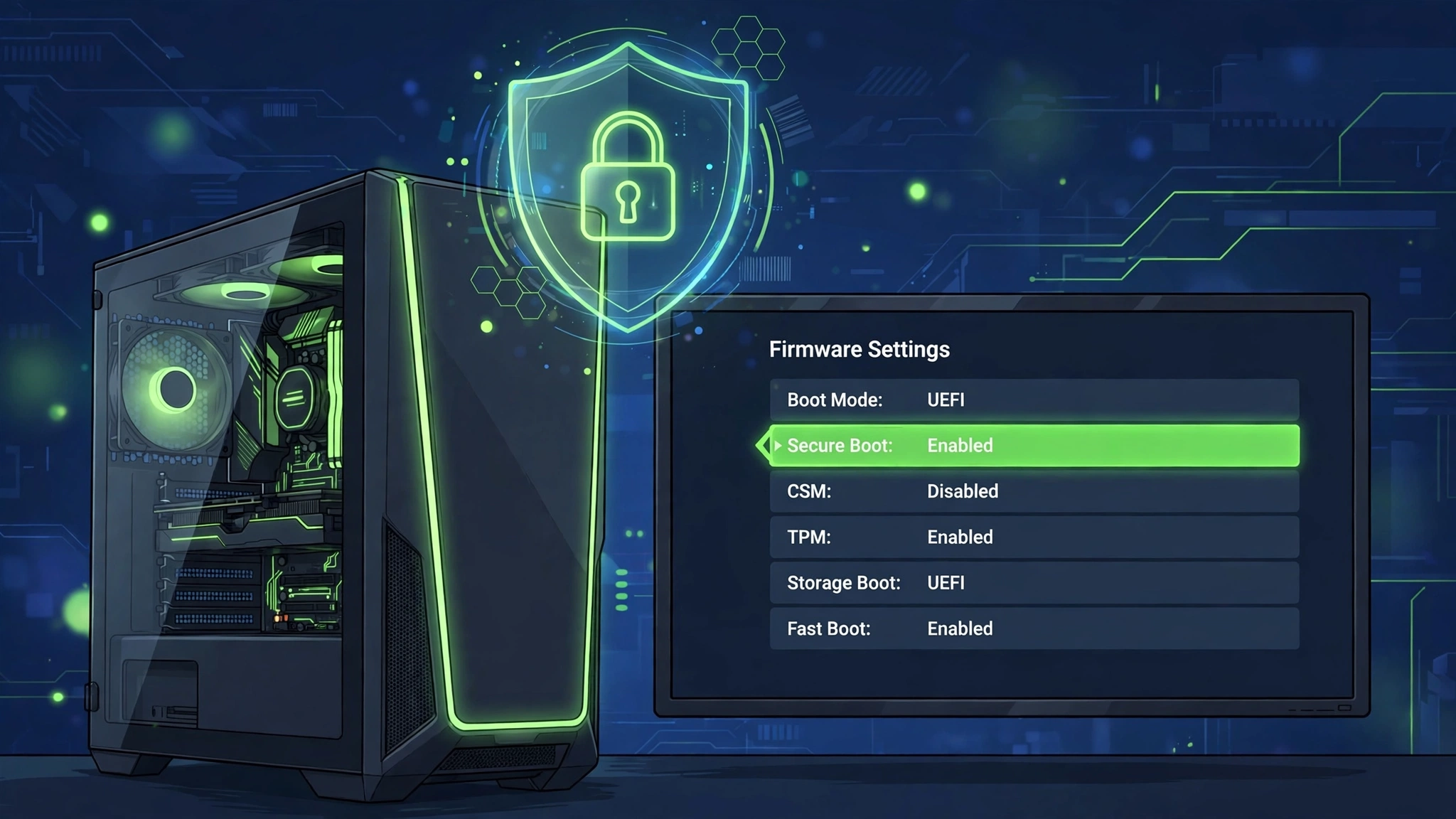
Firmware menus are made by your motherboard or PC maker, so the labels vary, but the route is the same on all of them.
1. Save your work and open Settings, then System, then Recovery.
2. Next to Advanced startup, click Restart now.
3. Choose Troubleshoot, then Advanced options, then UEFI Firmware Settings, then Restart. Your PC reboots into the firmware screen.
4. Find Secure Boot. It is usually under the Boot or Security tab. On many boards you need to press F7 first to switch from EZ mode to Advanced mode.
5. Set Secure Boot to Enabled.
6. If the firmware asks for an OS type, choose Windows UEFI mode.
7. Save and exit, usually with F10.
Windows starts normally. Run msinfo32 again and confirm Secure Boot State now reads On. Then launch Battlefield 6.
If Secure Boot was already Enabled in the menu but msinfo32 still said Off, or if the option was grayed out, the usual cause is missing or unloaded keys. Look for Secure Boot Mode or Key Management in the same menu and choose Restore Factory Keys, Reset to Default, or Install Default Secure Boot Keys. This loads the official Microsoft certificates the feature needs. Save and exit, then check msinfo32 again.
Menu paths by brand
You still reach the firmware with your brand’s key if you prefer the classic route instead of the Windows Recovery path. Tap the key repeatedly as soon as the PC powers on.
– ASUS: press Delete or F2. Press F7 for Advanced mode, then go to Boot, then Secure Boot.
– MSI: press Delete. Go to Settings, then Security, then Secure Boot.
– Gigabyte: press Delete. Go to Boot, then Secure Boot. On some Gigabyte boards it sits under Settings, then Security.
– Lenovo: press F1 or F2. Go to the Security tab, then Secure Boot.
– Dell: press F2. Go to Boot Configuration or Secure Boot, then Secure Boot Enable.
– HP: press F10. Go to Advanced or Security, then Secure Boot Configuration.
On ASUS desktops, you can load default firmware settings with F5 and save from there if you ever need a clean starting point. On ASUS notebooks the defaults key is F9.
If the Secure Boot option is missing
On many boards the Secure Boot menu does not exist until you disable the legacy compatibility layer first. Secure Boot cannot protect a legacy boot path, so the firmware hides the option.
1. In the firmware menu, find CSM (Compatibility Support Module), Legacy Boot, or Launch CSM. It is usually on the Boot tab.
2. Set it to Disabled.
3. If there is a Boot Mode setting, set it to UEFI or UEFI Only.
4. Save and exit with F10, then enter the firmware again. The Secure Boot option should now be visible.
If the option is still missing after that, check your motherboard maker’s support page for a BIOS or UEFI update. Early Windows 11 era firmware sometimes shipped without a proper Secure Boot menu, and a firmware update adds it. Install the update exactly as the maker documents it, then look again.
If your PC boots in Legacy mode
Secure Boot requires UEFI mode and a GPT disk. If msinfo32 showed BIOS Mode as Legacy, your Windows installation sits on an MBR disk. Turning on UEFI alone in that state will stop Windows from starting, so convert the disk first.
1. Back up your important files. The conversion is designed to be non-destructive, but a backup is cheap insurance.
2. Open Command Prompt as administrator.
3. Run mbr2gpt /validate /allowFullOS. Wait for it to pass validation.
4. If validation passes, run mbr2gpt /convert /allowFullOS.
5. Restart into the firmware, switch Boot Mode from Legacy or CSM to UEFI, and enable Secure Boot.
If validation fails, the disk layout is not convertible in place. Your fallback is a clean Windows install in UEFI mode: create the installer with Microsoft’s Media Creation Tool, disable CSM in firmware, boot the USB entry that starts with UEFI, and let Windows create fresh GPT partitions during setup. That path erases the drive, so the backup matters here.
Turn on TPM 2.0
Secure Boot alone is not enough. Battlefield 6 also requires TPM 2.0, and the two are usually fixed in the same firmware visit.
1. In the firmware menu, open the Advanced, Security, or Trusted Computing section.
2. Turn on the TPM option. The name depends on your platform: AMD boards call it AMD fTPM Switch or AMD PSP fTPM, Intel boards call it Intel PTT or Intel Platform Trust Technology. Some boards label it Security Device Support or TPM State.
3. Save and exit, then run tpm.msc in Windows and confirm Specification Version reads 2.0 and the status says the TPM is ready for use.
One edge case: if tpm.msc shows Specification Version 1.2, some business PCs from Dell and other OEMs can update the TPM firmware from 1.2 to 2.0 with a firmware update utility from the maker’s support site. Download it only from your PC maker’s official page, using your exact model or service tag, and follow their instructions. If no 2.0 update exists for your machine, Battlefield 6 cannot run on it.
Secure Boot is On but BF6 still blocks you
This is the frustrating case: msinfo32 says On, the game still shows the error. Work through these in order.
1. Disable CSM. Even with Secure Boot enabled, an active Compatibility Support Module can make the game’s check fail. Set CSM to Disabled in the firmware, save, and retry.
2. Restore the factory keys. In the firmware’s Secure Boot or Key Management section, choose Restore Factory Keys or Reset to Default. Boards sometimes carry custom or cleared keys that Windows tolerates but the anti-cheat does not.
3. Repair EA’s anti-cheat. Open C:\Program Files\EA\AC\EAAntiCheat.Installer.exe, select Battlefield 6 from the list, and click Repair. If repair changes nothing, use the same tool to uninstall it and then reinstall it.
4. Remove conflicting kernel-level software. Other anti-cheat tools and some third-party security suites run at the same deep level as Javelin and can interfere with its Secure Boot check. Temporarily disable or uninstall the other anti-cheat, restart, and test. Players have reported conflicts with other games’ anti-cheat software, and EA’s own forum guidance suggests testing with just Windows Defender running.
5. Check Memory Integrity. Go to Settings, then Privacy and security, then Windows Security, then Device security, then Core isolation details, and look at the Memory Integrity switch. EA lists HVCI and VBS as required capabilities for BF6, and toggling this on (with a restart) has resolved the error for some players.
Test the game after each step instead of changing everything at once. When it launches, you know exactly which setting was the blocker.
If the PC will not boot after the change
This happens when the firmware change does not match the Windows installation, most often enabling UEFI on a Legacy MBR install or enabling Secure Boot with unsigned bootloaders on the disk. Stay calm. Nothing here is permanent.
1. Power the PC off fully, then power it on and tap your brand’s firmware key (Delete, F2, F1, or F10) to get back into the firmware menu.
2. Revert the last change. Either load the firmware defaults (look for Load Optimized Defaults or a defaults key like F5 or F9) or switch Boot Mode back to Legacy/CSM and set Secure Boot to Disabled.
3. Save and exit with F10. Windows should start as before.
Once you are back in Windows, fix the underlying mismatch before trying again: convert the disk with mbr2gpt if you are on Legacy, or restore the factory Secure Boot keys if key enrollment was the problem. As a last resort, clearing the CMOS resets the firmware to factory state; do that only with your motherboard manual open, because the procedure and jumper location differ by board.
Frequently asked questions
Does Secure Boot hurt gaming performance?
No. Secure Boot runs once, while the PC starts, checking signatures on boot software. It does nothing while you play, so it cannot change your frame rate. Memory Integrity (HVCI) is a separate feature that does run in the background, and that one can cost a little performance on some systems. Turning Secure Boot on is free performance-wise.
Does this work on Windows 10?
Yes. Secure Boot exists on Windows 10 and Windows 11. EA’s own guidance says the requirement covers both. Keep in mind that Windows 10 no longer receives free security updates, so a move to Windows 11 is worth planning regardless.
Can I bypass the Secure Boot check?
No. EA made it a hard requirement for Battlefield 6 on PC, and the game checks before launch. Workarounds that claim to skip it are either scams or cheat tools that will get the account banned. The only fix is enabling it properly.
My motherboard is old and has no TPM 2.0 option. What now?
Then Battlefield 6 cannot run on that PC. There is no workaround that EA supports. If the board has a TPM header, a discrete TPM 2.0 module might be an option, but check your board’s manual and support page first. For most people, this is the point where the upgrade conversation starts. Our guide to Windows 11 gaming optimizations covers the related Windows security settings.
Will turning on Secure Boot break my dual-boot Linux install?
It can, if the Linux bootloader is not signed. Most mainstream distributions ship a signed shim that works with Secure Boot, but check your distribution’s documentation before enabling it. If the other OS stops booting, the recovery steps above get you back.
I enabled everything and the game launches but stutters. Related?
Probably not related to Secure Boot. Startup security checks do not cause in-game hitching. Check our game stuttering guide for that.
Sources
– Secure Boot requirement for Battlefield 6 on PC, EA official announcement: EA, Secure Boot Information for Battlefield 6 – https://www.ea.com/games/battlefield/battlefield-6/news/secure-boot-information
– EA Help article on enabling Secure Boot: EA Help, Secure Boot – https://help.ea.com/en/help/pc/secure-boot/
– BF6 PC requirements (TPM 2.0 enabled, UEFI Secure Boot enabled, HVCI and VBS capable): EA, Battlefield 6 System Requirements – https://www.ea.com/en/games/battlefield/battlefield-6/system-requirements
– “Secure Boot shows On but the game still blocks” fix sequence (disable CSM, restore factory keys, repair EA AntiCheat, conflicting kernel software): EA Forums, Battlefield 6 won’t launch, Secure Boot not enabled error – https://forums.ea.com/discussions/battlefield-6-technical-issues-en/battlefield-6-won%E2%80%99t-launch-%E2%80%93-secure-boot-not-enabled-error/12733996/replies/13372860
– How Secure Boot works with EA Javelin Anticheat (TPM 2.0, UEFI instead of CSM, HVCI/VBS): ExitLag, Secure Boot Battlefield 6 – https://www.exitlag.com/blog/secure-boot-battlefield-6/
– Secure Boot and TPM check steps (msinfo32, tpm.msc, Confirm-SecureBootUEFI): TechDows, EA Javelin anti-cheat setup – https://techdows.com/ea-javelin-anti-cheat-setup-fix-kernel-errors-2026.html
– Brand BIOS menu paths and MBR to GPT conversion steps: Live2Tech, How to Turn On Secure Boot in Windows 11 – https://www.live2tech.com/how-to-turn-secure-boot-windows-11-a-step-by-step-guide/
– Secure Boot key states and verification steps (msinfo32, Confirm-SecureBootUEFI, Windows Security device security): TechDows, How to Enable Secure Boot on Windows 11 – https://techdows.com/how-to-enable-secure-boot-windows-11-detailed-guide.html